Document window overview
Frettly is built around the macOS document model — similar to Pages. Rather than showing a single fretboard that resets each time the app is opened, Frettly lets you create documents and collect your chosen fretboards inside them.
These document files become your notebooks for learning, projects, and discovery: collect the blues scales you want to learn, the minor chords you want to practise, and so on. Because Frettly uses documents, they can be moved, duplicated, shared, and even reverted using Time Machine.
If you create two documents — one for guitar and the other for bass — you can switch between them and Frettly will play notes using each document’s configured instrument. Don’t forget to explore the macOS menu bar’s File menu.
-
Document level controls
The controls in the top-right of a document window affect Frettly’s overall behaviour and display throughout the current document, while fretboard controls are shown per fretboard.
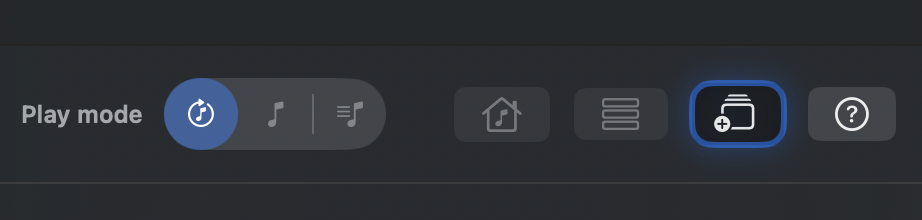
Frettly document-level controls From left to right, the highlighted controls are described below.
-
Play mode
Frettly has three different ways of playing notes you click within fretboards:
- Sustained play — each clicked note plays for a few seconds before fading. Multiple notes can be played in quick succession to get a feel for how they sound together, helping you hear the relationship between intervals.
- Single play — click and hold to hear a note; on release, the note stops. This mode lets you train your ear to a single note or interval without other notes ringing.
-
Pattern play — click the root note of a pattern and Frettly plays the notes in that fretboard’s pattern along the string.
For a scale, you will hear seven notes (assuming you have not hidden any — see the fretboard help for hiding notes).
For a chord, Frettly plays the chord tones in sequence (again, assuming none are hidden), then finishes with a strum of all notes.
So assuming the chord is Emaj and you click the E on the nut of string 6, the sequence you hear will start with that E, followed by the G# on fret
4 and B on fret 7, of the same string, followed by a strum of those three together.
The strum is not intended to represent a specific chord voicing/fingering, ordinarily as no fingering is pre-determined, unless you are using the Mark notes and View marked notes features (see the help for Fretboard marking for details on those features).
-
Jump to current fretboard
When you click anywhere within a fretboard, it becomes the currently focused one. The Up and Down arrow keys move that focus up and down, one fretboard at a time. Focus is primarily a navigational aid: controls (and notes) across all fretboards remain usable, regardless of which one is currently focused.
Focus can be especially useful in documents with many fretboards. For example, you might keep focus on a “primary” scale and quickly return to it from anywhere in the document. “Jump to focus” takes you straight back to the last fretboard you clicked within.
-
Arrange panels
The “Arrange panels” button opens a dialog where you can manage panel order and navigation. You will notice that in the document, each fretboard has a number in its title area. After moving a fretboard, its number will change as the numbering is always sequential within the document. Those numbers show you a fretboards relative position in the document.
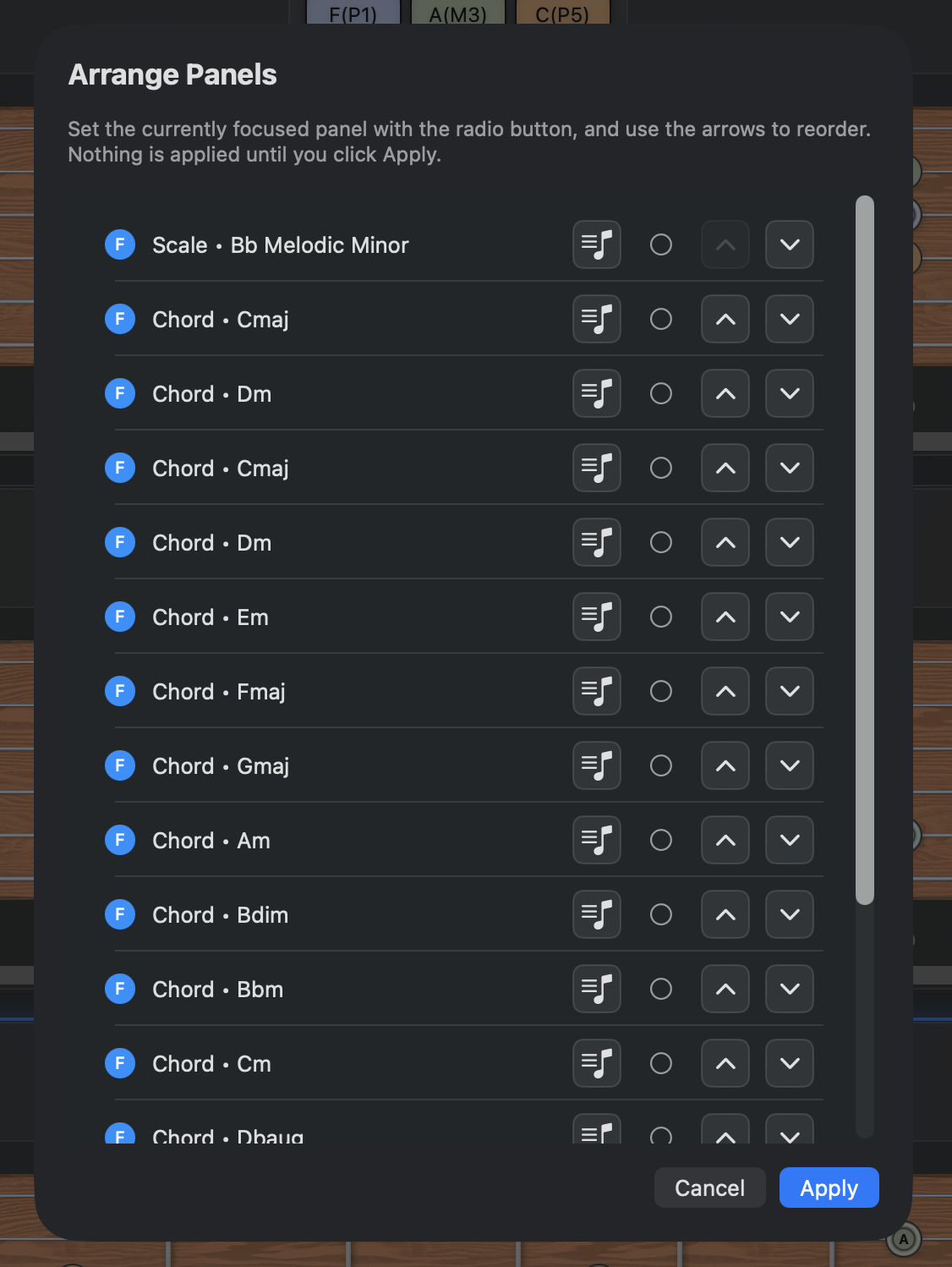
Arrange panels dialog Reorder panels: you can rearrange the order of fretboard panels in one of two ways within the dialog: either drag and drop the row representing a panel, or use the Up/Down chevron buttons. The order you choose becomes effective when you click “Save”. The list of panels will show the numeric position of each in the document, even after a panel is moved. It's new position does not come into effect until you select “Save”.
Set focus: each row has a radio button selector. Choose one and, when you click “Apply”, that panel becomes the focused panel and is brought into view.
Preview panels: you can also sample panels quickly using “Pattern play”, without needing to scroll to each one in the document.
An alternative to using the “Arrange panels” dialog to re-arrange fretboards is to drag a panel in the document using the fretboard title area, showing a three bar drag handle to remind you.
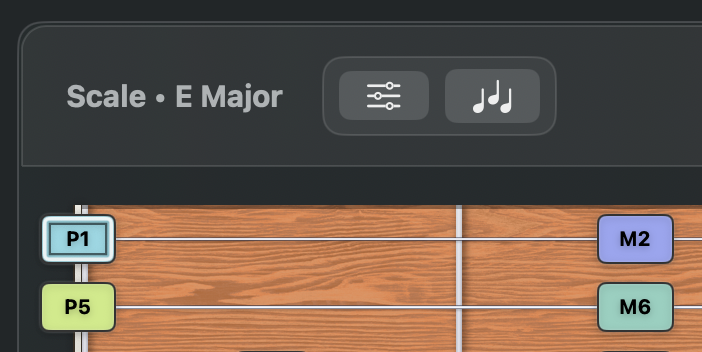
Draggable fretboard title Click and hold anywhere in the title area and drag it into its intended position (while dragging you should see a snaphot of just the title being dragged). Where you drop it, relative to the nearby fretboard will determine its new position - drop it in the lower half of a fretboard and it will move after that fretboard, drop it in the upper half and it will be moved to be before that fretboard.
-
Add fretboard
Mentioned in the “Getting started” section of this site, the “Add fretboard” button opens the dialog where you choose a content type (scale/mode/chord), a root note, and a pattern for a new fretboard panel.
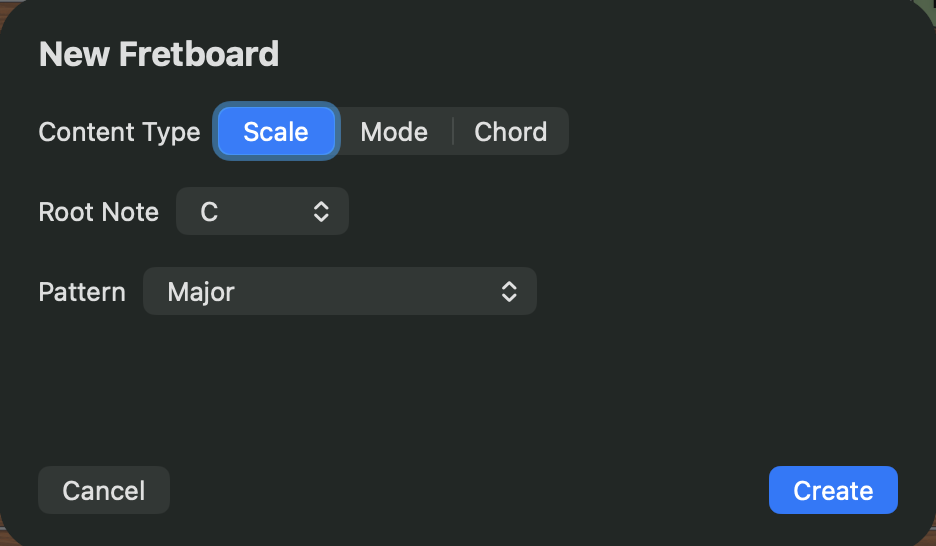
Add fretboard dialog -
Help
The Help button opens Frettly’s lightweight in-app help dialog. The macOS menu bar “Help” → “Frettly Help” opens the content you are reading right now in your browser.