F
Frettly
macOS · 14.0.0+
Editing Essentials
Some of Frettly's most useful features are not obvious and are not visible in it's user interface. They are features you are already used to from applications such as Pages and Numbers, and might not expect to see in an app like Frettly, so it is worth calling them out and explaining them here.
-
File Menu
Frettly is a document based app like Pages. Just as you create documents in Pages for specific purposes, Frettly documents can each be tailored for a specific learning exercise or fretboard exploration. One document might be for exploring blues scales, another for pentatonic explorations. The 'File' item in Frettly's menu gives you access to standard macOS file related operations.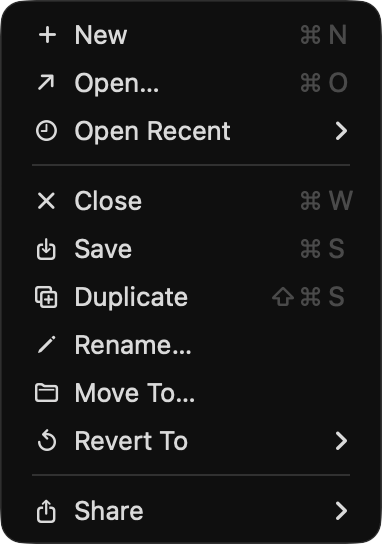 From this menu you may create new Frettly documents, open documents etc as well as use the macOS document
revision system to revert to a previous version of your document.
From this menu you may create new Frettly documents, open documents etc as well as use the macOS document
revision system to revert to a previous version of your document.
-
Edit Menu
When a fretboard panel title area is clicked, that fretboard becomes the current/focussed fretboard, and will be the fretboard scrolled back to when the “Home” button is clicked. Use keyboard up and down arrows to move the current focus. That currently focussed fretboard will also be the target for the Cut/Copy/Delete options in the Edit menu.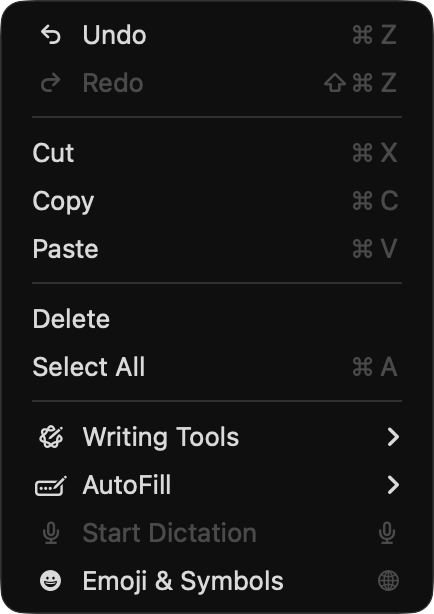 A Cut or Delete of a fretboard can be undone from the Edit menu using Undo and re-applied with Redo.
Marking of notes and selection of fretboard notes/intervals using the centre top 'chips' can also be reverted or
re-applied using Undo/Redo
The Select All menu command will only work for text in fretboard noteboards ie it will not select all fretboards.
The combination of Edit menu commands Cut/Copy/Paste/Delete/Undo/Redo provides a powerful way to edit and manage
fretboards within a document, and also across documents.
A Cut or Delete of a fretboard can be undone from the Edit menu using Undo and re-applied with Redo.
Marking of notes and selection of fretboard notes/intervals using the centre top 'chips' can also be reverted or
re-applied using Undo/Redo
The Select All menu command will only work for text in fretboard noteboards ie it will not select all fretboards.
The combination of Edit menu commands Cut/Copy/Paste/Delete/Undo/Redo provides a powerful way to edit and manage
fretboards within a document, and also across documents.
-
Drag And Drop
Fretboards can be moved within a document by dragging them by their drag handle/title area and dropping them in the upper or lower half of another fretboard (which determines whether they will be moved to before or after the fretboard they are dropped onto). The target fretboard needs to be close when dragging like this, so with documents having many fretboards, moving fretboards is easier with the “Arrange panels” button in the document header. -
Cross Document Editing
Fretboards can also be dragged from one Frettly document into another. When they are, the original fretboard remains in the source document, and a copy is placed in the destination document, following the pattern described above (upper/lower half of a fretboard determining before/after). If the destination document does not have any fretboards yet, simply drop into the 'Welcome to Frettly' introductory text panel. Copy/Paste between documents also works and is a useful way of replicating fretboards, even when the two documents are for different instruments/tunings - the fretboard added will automatically be adjusted to show the same scale/chord but in the context of that document's instrument/tuning. Notepad text is copied across, as is the nature of the scale/chord/mode. If the destination document's configuration (instrument/tuning) matches that of the source document, then marked notes will also be copied, else they will be cleared. ie Frettly will retain what makes sense in the fretboard copy within the target document. -
View Menu
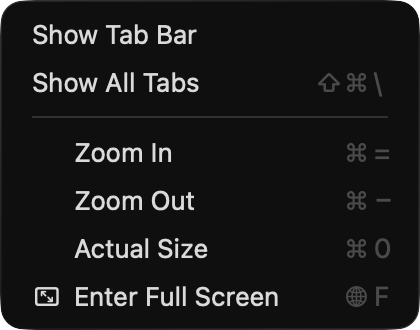
The View menu item enables switching tabbed mode on/off. When tabbed mode is on, it is possible to open multiple Frettly documents within the same window, and switch between tabs using Ctrl Tab. Copy/Paste of fretboards works within tabbed mode, just as it does within separately windowed documents, but drag and drop cannot.