F
Frettly
macOS · 14.0.0+
Frettly Settings
While each fretboard has controls within it which determine the characteristics of just that fretboard, and each document has document wide configuration (instrument, tuning and handedness) which apply to all of the fretboards within it, Frettly has application wide settings, found in menubar item “Frettly” -> “Settings”.
Settings are divided into tabs:
- General - Miscellaneous settings
- Documents - Settings which affect document level functionality
- Instruments - Settings for Frettlys supported instruments
- Fretboards - Settings which affect fretboard level functionality
- Support - Help related
-
General
- On first installation, Frettly presents an introductory welcome page, offering to create a new document, open an existing one, or open the inbuilt example document. That welcome page can be set to not re-appear on future application launch, but should you wish to have it re-appear, the option is here.
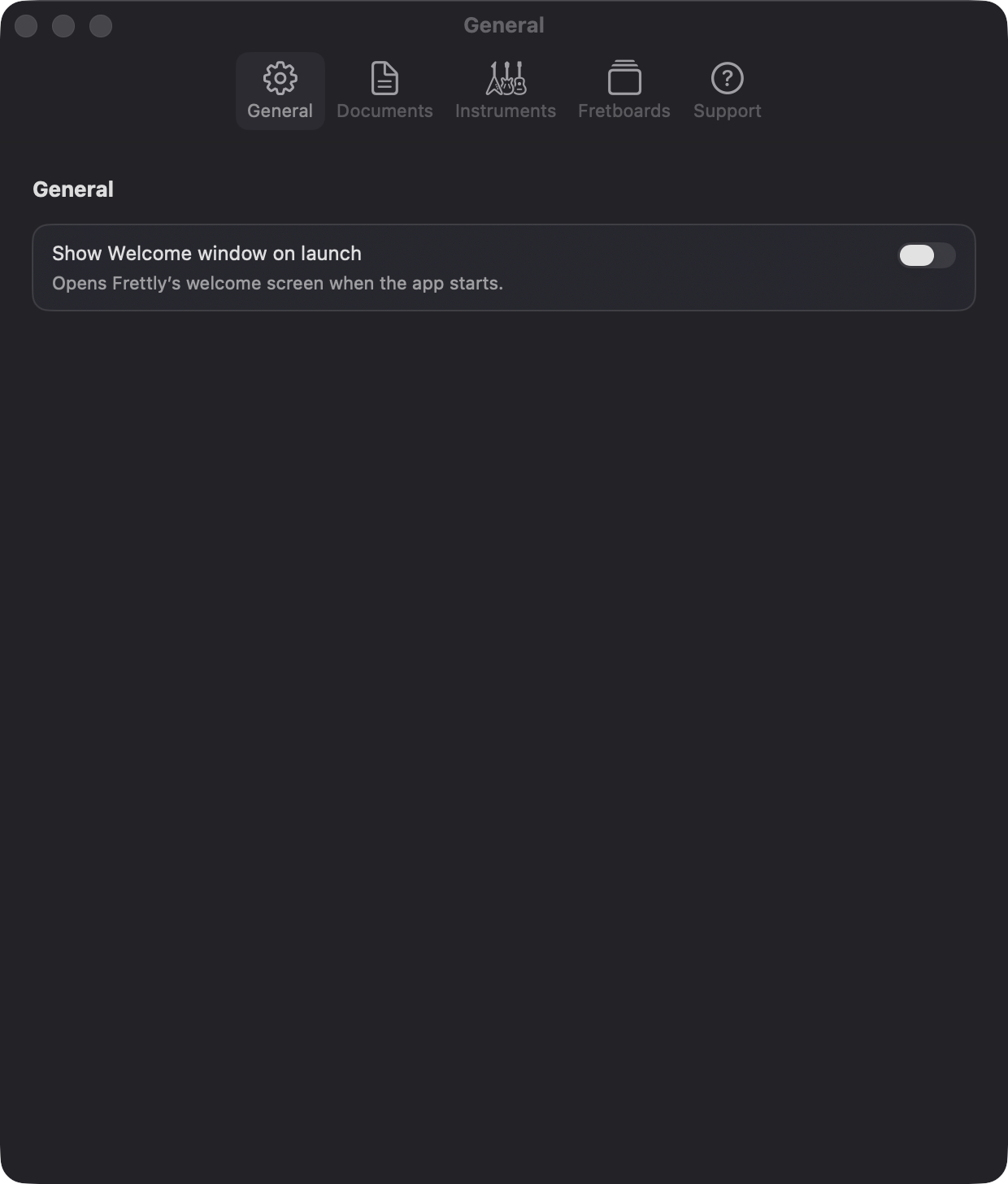
Frettly Settings - General -
Documents
- When creating a new document, you are prompted for instrument, tuning and handedness , with the latter defaulting to right-handed, favouring the majority of players. If you are in the minority, set the default to be left-handed here.
- The play mode when clicking fretboard notes has three settings, sustained, single or pattern run. The default mode for new documents can be set in this tab. The play mode can be changed within the document at any time once it has at least one fretboard.
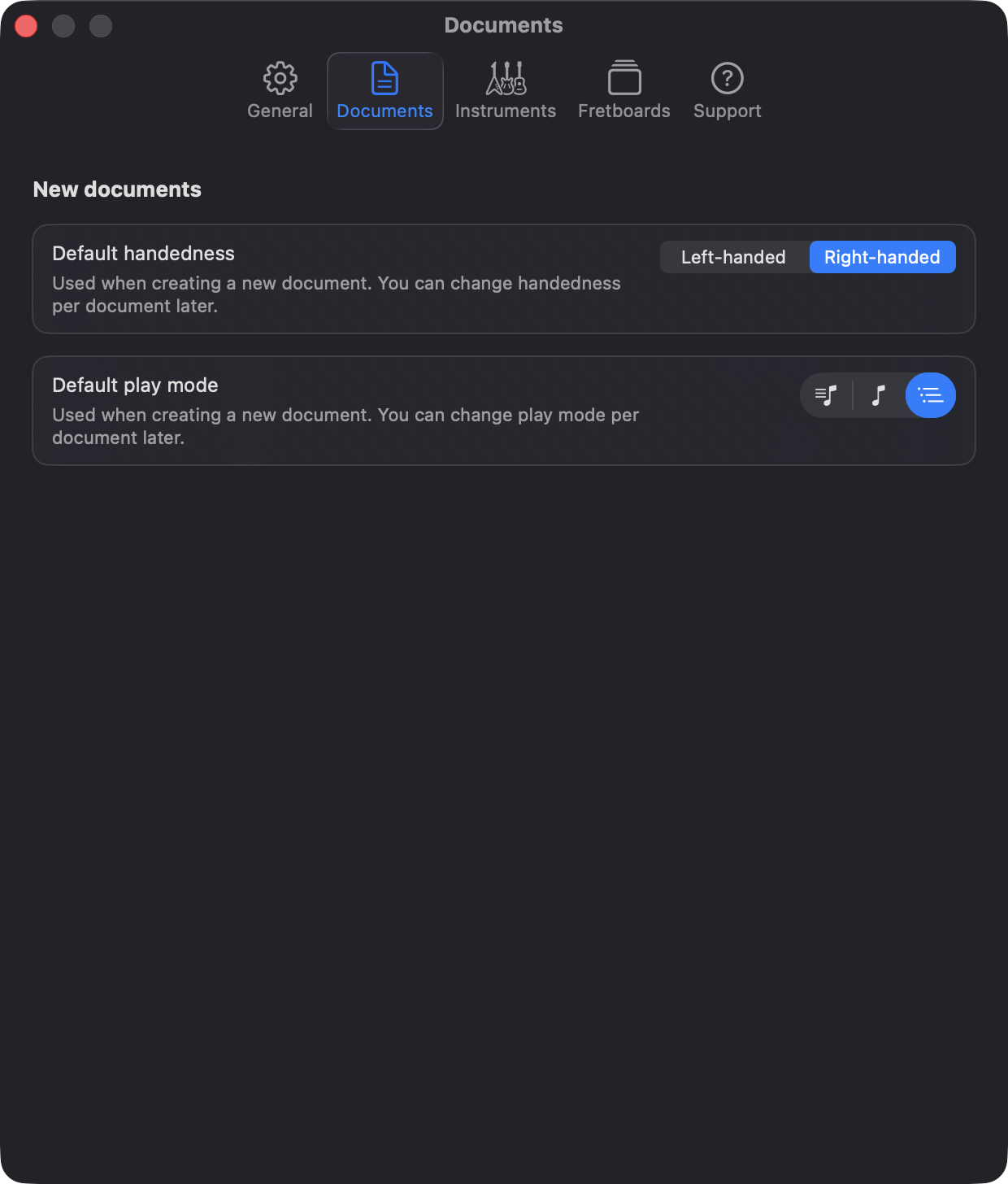
Frettly Settings - Documents -
Instruments
- This section gives you control over the default maximum number of frets Frettly uses for each instrument type. That means fretboards can better reflect the instruments you actually play, whether your guitar stops at 22 frets, your mandolin has a shorter fingerboard, or your ukulele has a more compact range.
- Use the sliders to choose the fret limit that best matches each of your own instruments. Frettly will then use those values whenever it display a fretboard in a document of that instrument type. Sliders shown in grey indicate instruments using Frettly’s built-in defaults, while blue sliders indicate an instrument is using a default override.
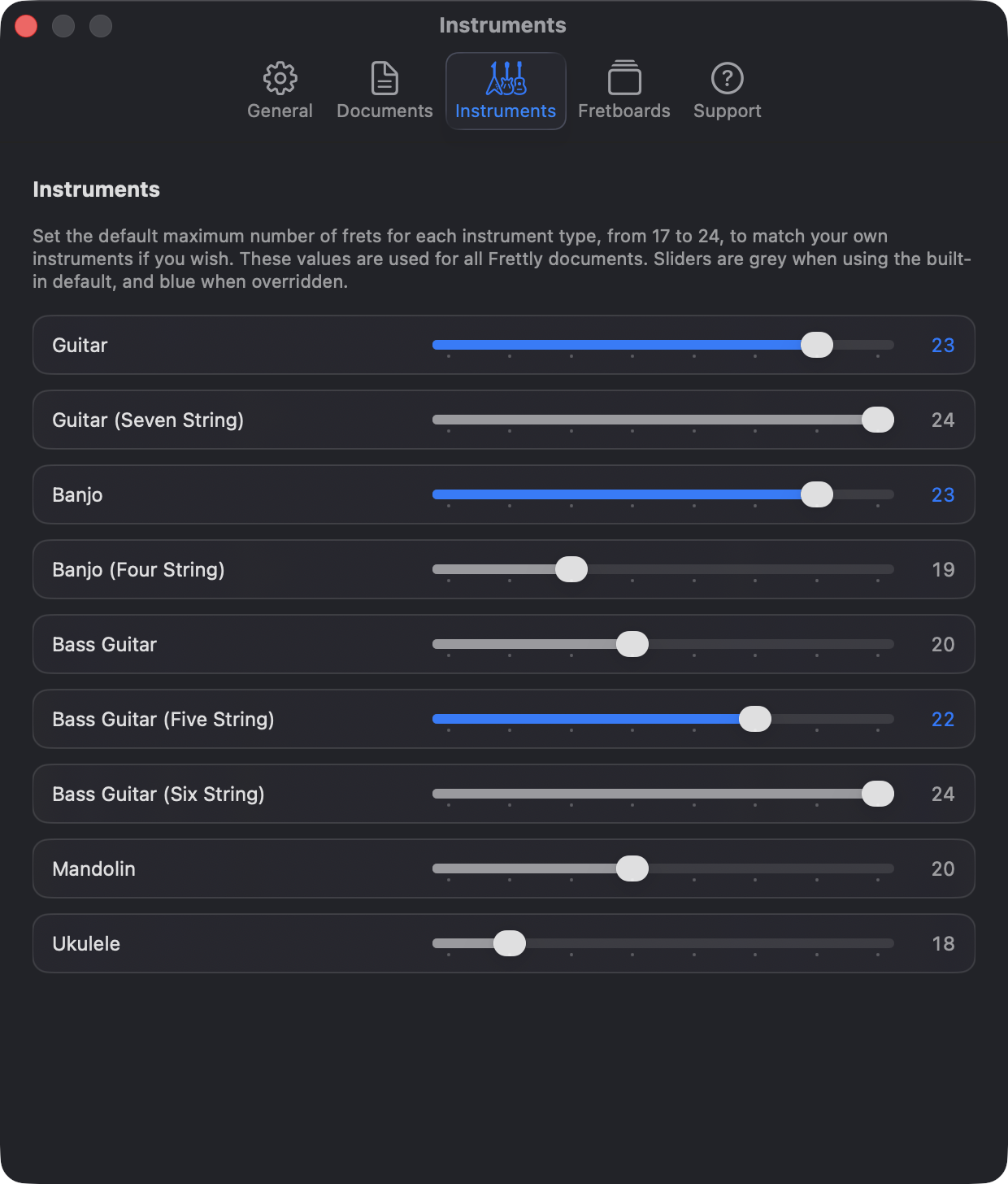
Frettly Settings - Instruments -
Fretboards
- Background - choose here which wood graphic you would like for all fretboards in all documents. The choice you make is seen immediately in any open documents, so you can see the effect straight away if you have open documents, but a preview is also shown in the dialog.
- Note colours - depending on the background you choose, you may like to choose darker/lighter or subdued/vibrant colours for the notes and intervals shown in fretboards. Again, your selection is instantly applied to open documents and a preview is provided in the settings dialog. The two Mono themes provide monochrome colouring for those who prefer uniform note colouring.
- Confirmations - by default, the “Erase Markings” and “Delete Fretboard” buttons in fretboards will challenge you before carrying out their action. The challenges are there to prevent accidental erase/deletion. If you would rather Frettly act on the button press without challenge, switch either or both off here. When one of those buttons has had its challenge switched off in settings, the buttons icon will be coloured orange to remind you of its immediacy.
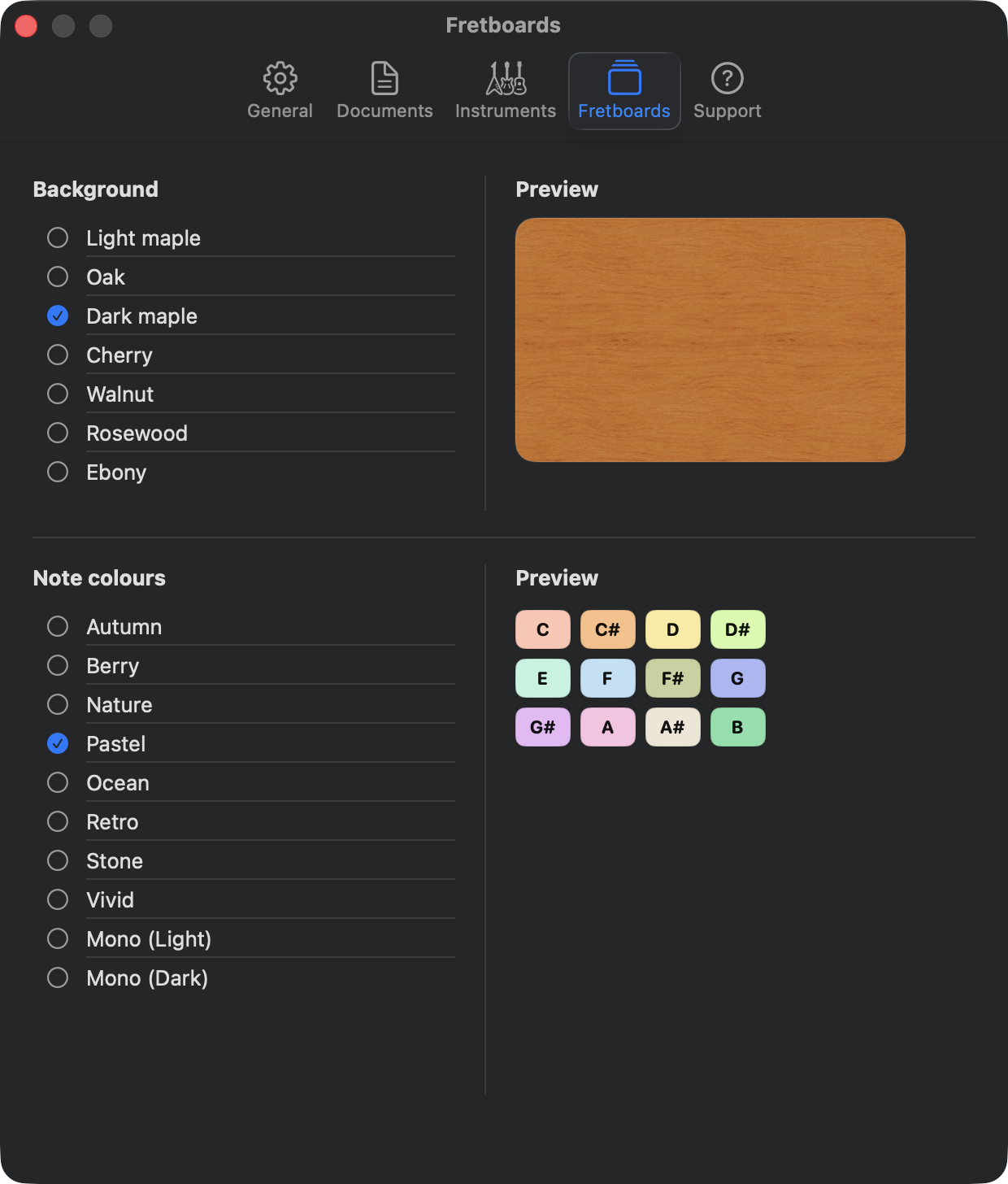
Frettly Settings - Fretboards -
Support
- A link to this website is provided within this tab.
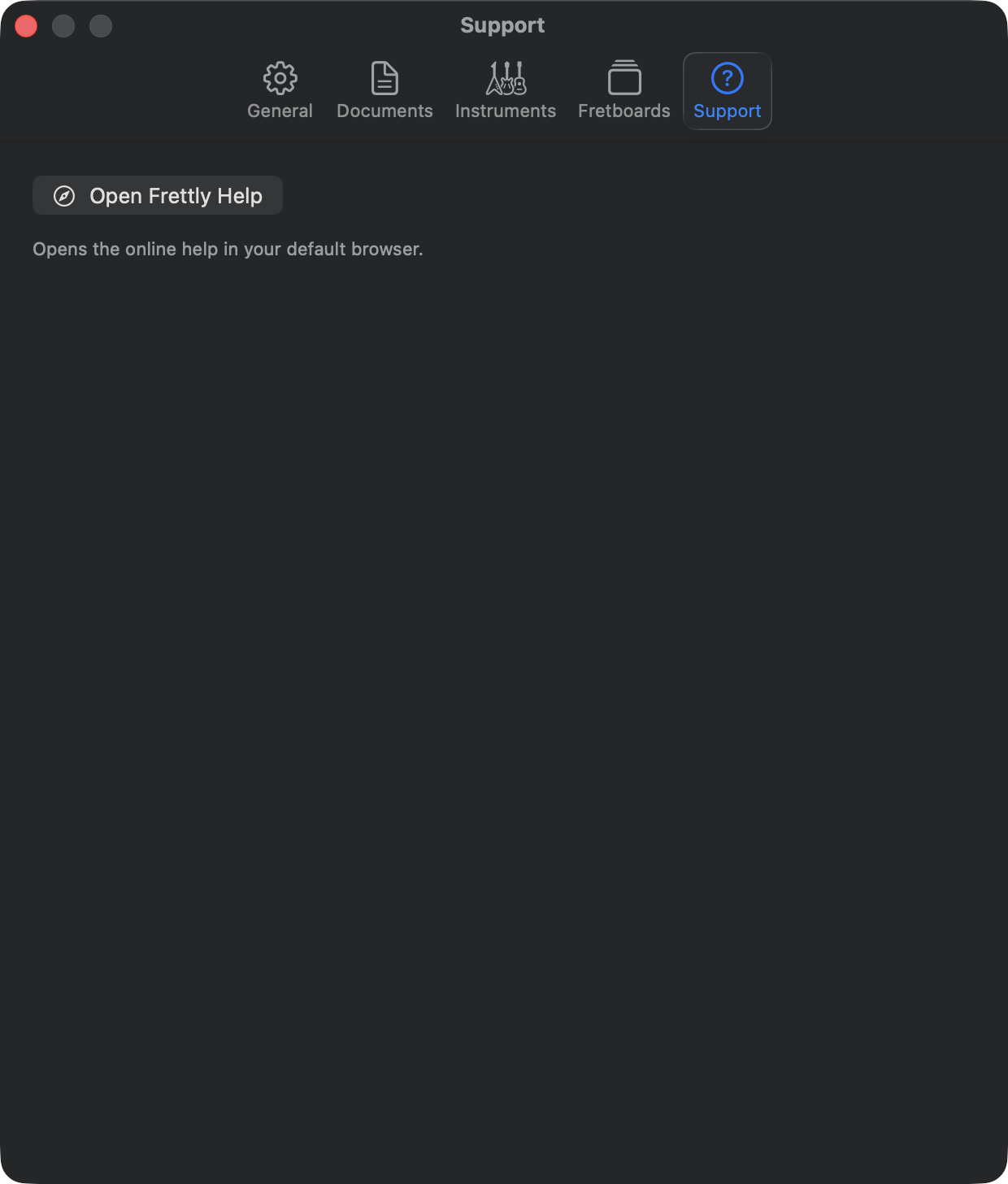
Frettly Settings - Support