Getting started
When you create a new document in Frettly, you’ll be asked to select an instrument type, its tuning, and whether you are right- or left-handed.
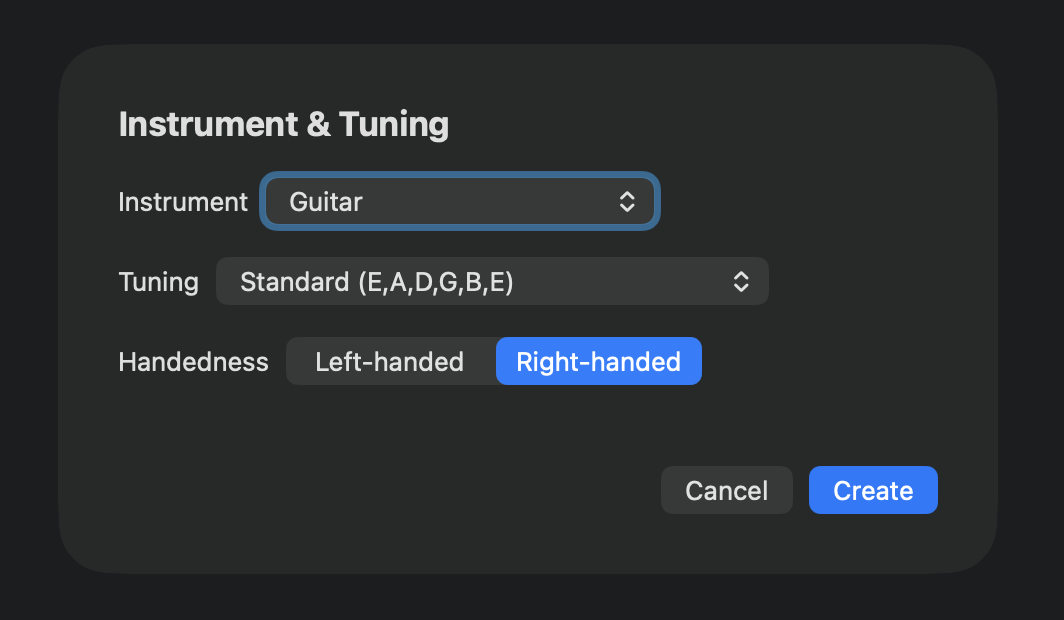
- Select an instrument from:
- Guitar
- Guitar (Seven String)
- Banjo
- Banjo (Four String)
- Bass Guitar
- Bass Guitar (Five String)
- Bass Guitar (Six String)
- Mandolin
- Ukulele
- Select a tuning for that instrument - Frettly comes with multiple instrument-specific tunings. Note that in the free version of Frettly, the choice of tuning is limited to the standard tuning for the selected instrument.
- By default, all fretboards are for right-handed players, with the nut end on the left. Select “Left-handed” in the document’s settings and all its fretboards will display with the nut end on the right.
- The defaulting to right-handed at document creation time can be changed to left-handed in menubar Frettly -> Settings, Documents tab.
The instrument/tuning/handedness selections made when the document is created will determine the appearance and layout of all fretboards created within it, and will be re-applied when the document is reloaded. The selections made are summarised in the top left of the document window.
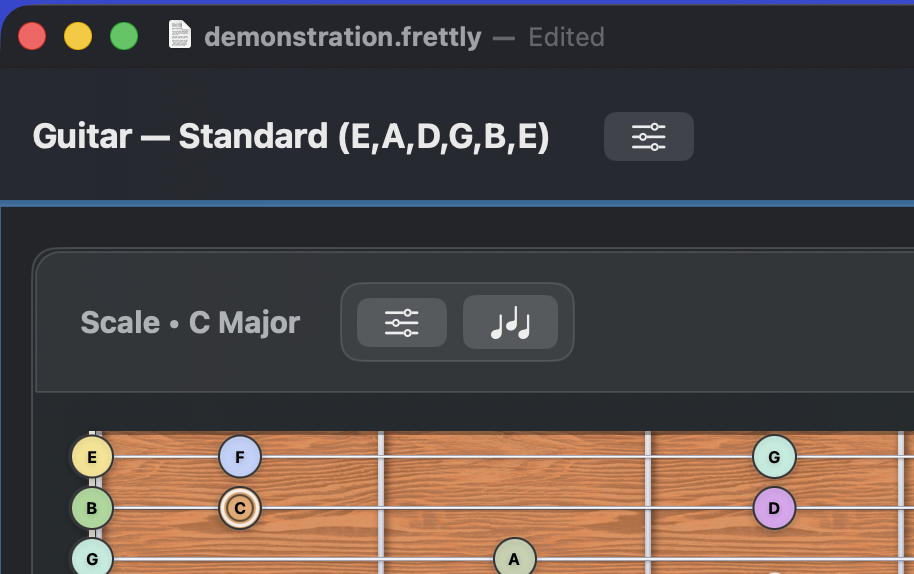
However, you can change any of these choices later using the controls icon to the right of the instrument/tuning title at the top of the document. When you click “Apply”, all fretboards in the document update to match the new settings. For example: start with guitar, standard tuning, right-handed — then switch to a left-handed bass guitar with Drop D tuning, and all fretboards adjust automatically.
Once you have made that selection and clicked “Apply”, you will be presented with your new but still empty document. Click the glowing “Add fretboard” button on the top right of the document window:
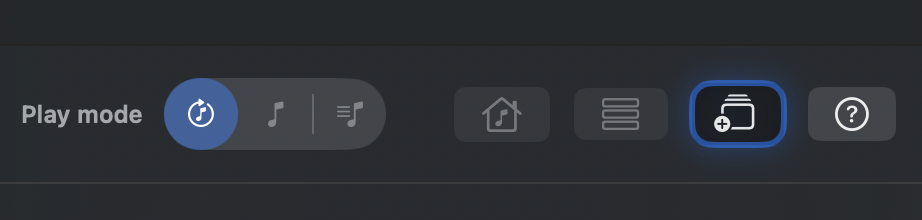
Clicking the “Add fretboard” button will open the fretboard config dialog:
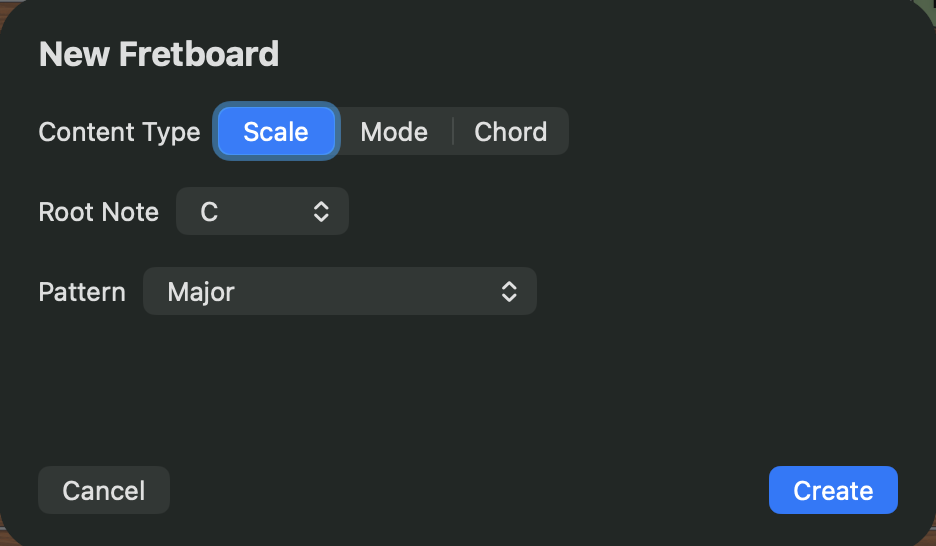
- Select your fretboard's “Content type” from Scale, Mode or Chord.
- Select the root note (P1) for the chosen content type.
- Select the pattern to be used for this fretboard. Note that in the free version of Frettly the choice of patterns is limited.
For the “Scale” content type, the available patterns are:
- Major
- Minor
- Melodic Minor
- Harmonic Minor
- Hungarian Major
- Hungarian Minor
- Byzantine
- Major Pentatonic
- Minor Pentatonic
- Major Blues
- Minor Blues
- Bebop Major
- Bebop Dominant
- Whole Tone
- Diminished (Half-Whole)
- Diminished (Whole-Half)
- Chromatic (all 12 notes)
For the “Mode” content type, the available patterns are:
- Ionian
- Dorian
- Dorian♭2
- Phrygian
- Phrygian Dominant
- Lydian
- Lydian Dominant
- Lydian Augmented
- Mixolydian
- Mixolydian ♭6
- Aeolian
- Locrian
- Locrian
- Locrian ♯2
- Altered (Super Locrian)
For the “Chord” content type, the available patterns are:
- maj
- m
- dim
- aug
- 5
- sus2
- sus4
- add2
- madd2
- add9
- madd9
- add11
- 6
- m6
- 6/9
- m6/9
- dim6
- aug6
- 7
- maj7
- m7
- m(maj7)
- 7sus4
- 7sus2
- m7b5
- dim7
- 7#5
- 7b5
- maj7#5
- 9
- maj9
- m9
- 9sus4
- 7b9
- 7#9
- m7(add11)
- m11
- 11
- 7#11
- maj7#11
- 7add13
- 13
- maj13
- min13
- 13sus4
- 13b9
- 13#11
Once your fretboard is created, you can create another, and another, and so on. All the fretboards you create are stored in the current document. Open it tomorrow and they’ll still be there waiting for you.
Create a document for individual instruments or tunings, or for multiple lessons or projects for just one. How you organise your fretboard documents is entirely up to you!